%201.svg)
QA Tool Integration with Slack: Security Guide



Secure Slack integrations are essential to protect sensitive data. Misconfigurations can lead to breaches, as seen in the 2022 Uber incident where Slack vulnerabilities were exploited. This guide outlines how to securely connect QA tools like Ranger to Slack, emphasizing data protection, controlled permissions, and compliance.
Key Takeaways
- Secure Workspace Settings: Enable two-factor authentication (2FA), app approval processes, and session duration limits.
- Limit Permissions: Use OAuth scopes with the least privilege, avoiding high-risk permissions unless necessary.
- Data Security: Encrypt data in transit and at rest, avoid sharing sensitive information in public channels, and use private channels for QA discussions.
- Auditing & Monitoring: Regularly review app permissions and logs using Slack’s Audit Logs API, and remove unused integrations.
- Incident Response: Prepare for breaches with a clear response plan, including Slack “war rooms” and credential rotation.
- Vendor Assessment: Evaluate third-party tools like Ranger for certifications (SOC 2, ISO 27001), encryption standards, and compliance with GDPR/HIPAA.
By following these steps, you can create a secure Slack environment while optimizing QA workflows.

5-Step Secure Slack QA Tool Integration Process
Preparing for Secure Integration
Before connecting any QA tool to your Slack workspace, it's critical to secure your environment. A poorly configured workspace can leave your system vulnerable to breaches and unauthorized access. This preparation phase determines whether your integration strengthens security or introduces risks.
Configuring Slack Workspace Settings
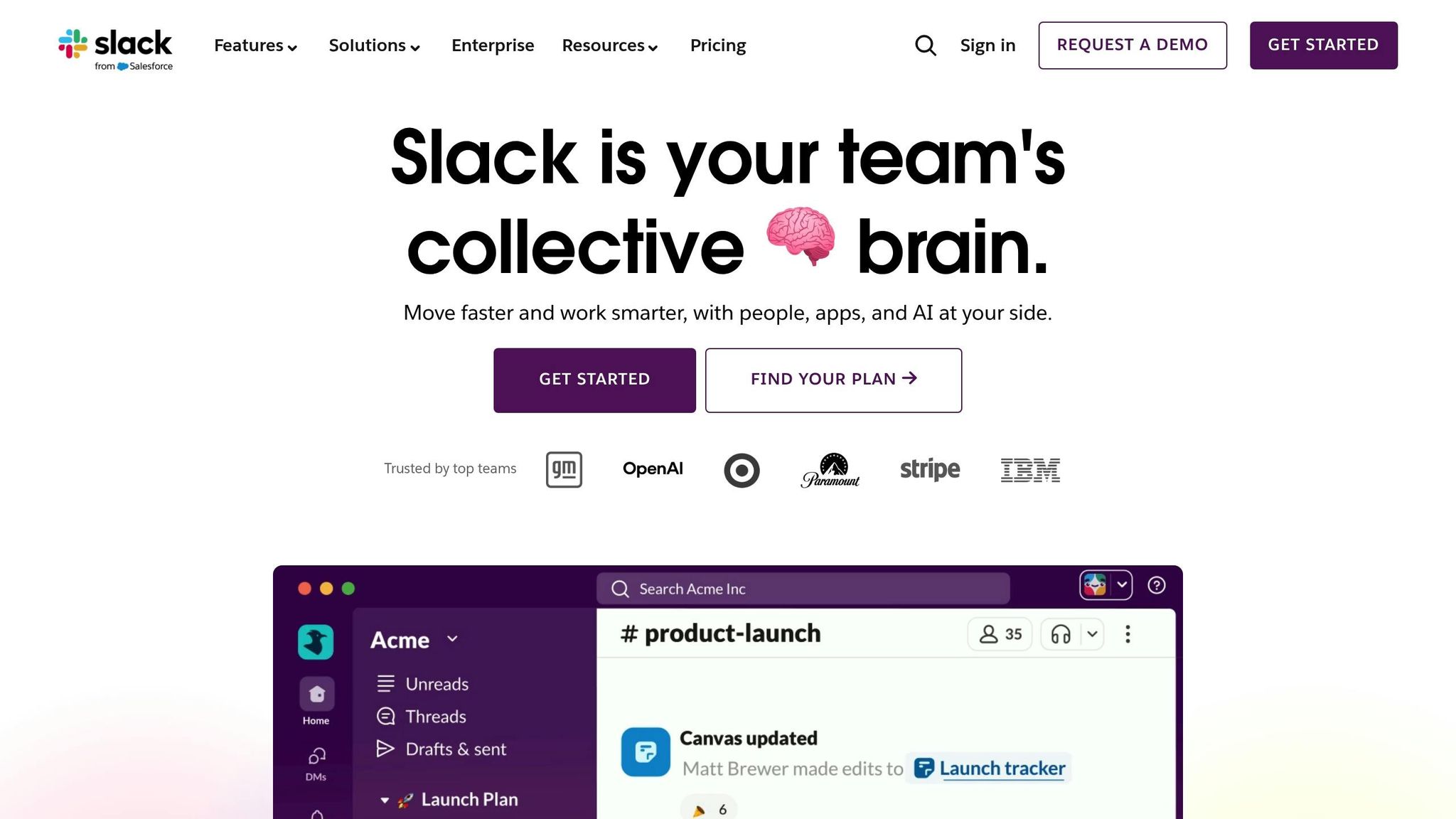
Start by enabling mandatory two-factor authentication (2FA) for all workspace members. This step is a powerful defense against compromised passwords, as it prevents unauthorized access to your workspace and its integrated tools. You can activate this feature in your admin dashboard and ensure it is non-optional for all users.
Next, activate the Require App Approval setting under App Management. This ensures that all integration requests go through an administrative review before they are deployed. Without this safeguard, any workspace member could install unvetted tools that might request excessive or unnecessary permissions. Assign specific individuals as "App Managers" to handle these approvals efficiently and avoid administrative delays.
"If you are using a cloud provider to host your app, ensure that your account has Two-Factor Authentication (2FA) enabled, and that you are using strong passwords." – Slack Developer Documentation
It’s also a good idea to set session duration limits to reduce the risk of unauthorized access from unattended devices. Additionally, restrict the ability to create channels or invite new members to admins only, or implement an approval process for these actions.
| Security Setting | Recommended Configuration | Impact on QA Integration |
|---|---|---|
| Two-Factor Authentication | Mandatory for all members | Prevents unauthorized access via compromised credentials |
| App Approval | Enabled (Admin review required) | Ensures only vetted QA tools with safe permissions are installed |
| OAuth Scopes | Minimal (Least Privilege) | Limits the data the QA tool can access or modify |
| IP Restrictions | Trusted CIDR ranges only | Blocks API calls from unauthorized networks |
| Token Rotation | Enabled | Reduces the risk of long-lived stolen credentials |
Once you’ve secured your Slack workspace, you’re ready to configure Ranger for a safe integration.
Setting Up Ranger for Slack Integration
With your workspace locked down, the next step is to establish a secure connection with Ranger. Log in to Ranger and navigate to the integrations section. Generate API keys securely and store them in a secrets manager - never hardcode credentials into your codebase.
Use tools like AWS Secrets Manager or HashiCorp Vault to securely store your API keys. During the setup, define the minimum OAuth scopes required for Ranger’s functionality. For example, request low-risk permissions like chat:write for posting messages, and avoid high-risk scopes like admin or channels:history unless absolutely necessary.
To further enhance security, enable token rotation in Ranger’s settings. This minimizes the risk of exposure by ensuring tokens are regularly refreshed. Additionally, confirm that all Ranger endpoints use SSL/TLS encryption to protect data during transmission. Configure Ranger to verify incoming requests using Slack’s signing secrets, ensuring that only legitimate Slack messages trigger testing workflows.
Before rolling out the integration across your workspace, test it in a private channel. Confirm that Ranger can post test results and bug notifications without accessing unrelated channel data. This step allows you to identify and fix any permission issues early, preventing disruptions in your production environment.
Step-by-Step Secure Integration Process
Once your workspace and Ranger are set up, it's time to connect the two systems. Slack's OAuth process ensures a secure exchange between the platforms, giving you control over what Ranger can access and how it operates within your workspace.
Installing Ranger from Slack App Directory
After securing your workspace settings, head to the Slack App Directory to install Ranger. Search for Ranger in the directory and click the Direct Install URL. This link will take you to Slack's official OAuth authorization page, ensuring a secure process and minimizing phishing risks. Make sure app installations follow your organization's admin approval protocols.
"The reason the user is redirected back to your app at the end of OAuth is for transparency purposes: the user deserves to know the end of the story, whether your app was installed successfully or not." – Slack Developer Documentation
During the OAuth process, Slack will show the exact permissions Ranger is requesting. Carefully review these permissions and approve them only if they align with your needs. Keep in mind that the authorization code you receive will expire in 10 minutes, so complete the process promptly. Once installed, Ranger will receive a bot token (starting with xoxb-), allowing it to operate independently without impersonating individual users.
Configuring OAuth Scopes for Limited Permissions
Slack's OAuth v2 flow allows you to assign specific permissions, ensuring Ranger only has access to what it needs. For most QA workflows, Ranger typically requires chat:write to post test results and channels:read to identify where notifications should go. Avoid granting channels:history unless absolutely necessary, and steer clear of admin scopes unless they're critical.
"Every app should only have the minimum permissions (scopes) necessary to perform its function." – Slack Developer Documentation
Document all approved permissions in your security policy and review them quarterly. Use Slack's App Management dashboard to confirm that Ranger's scopes remain appropriate for your needs.
| Scope Category | Risk Level | Examples | When to Approve |
|---|---|---|---|
| Always Allowed | Low | commands, chat:write |
Standard QA notifications and slash commands |
| Requires Approval | Medium/High | channels:history, users:read |
When historical context or user data access is needed |
| Restricted | High | admin.*, search:read |
Only in exceptional cases, with executive approval |
By limiting permissions to what’s essential, you align with Ranger's security framework and prepare for the next step: enforcing two-factor authentication.
Enabling Two-Factor Authentication
Strengthen your integration further by enabling two-factor authentication (2FA). This builds on your secured workspace and limited OAuth scopes, adding another layer of protection.
"If you are using a cloud provider to host your app, ensure that your account has Two-Factor Authentication (2FA) enabled, and that you are using strong passwords." – Slack Developer Documentation
Activate 2FA on your cloud platform to safeguard production systems and limit administrative access to only those who need it. Make sure all admin accounts use 2FA and strong, unique passwords.
If your team uses Sign-in with Slack to access Ranger's dashboard, you’ll benefit from Slack’s workspace-level 2FA policies. This ties user authentication to your organization’s security measures.
Managing Permissions and Access Controls
Once you've set up OAuth scopes and two-factor authentication, the next step is managing where and how Ranger operates within your Slack workspace. Slack apps don’t automatically gain access to all channels - they need explicit invitations. This gives you control over the conversations Ranger can view and interact with.
Restricting App Access to Specific Channels
Ranger doesn’t join channels by default. You’ll need to invite it to specific channels (like #qa-alerts or #test-results) using the /invite @Ranger command. To avoid unnecessary exposure, skip granting the chat:write.public scope during setup. This scope allows apps to post in all public channels without needing to join them first, which can lead to overexposure. Instead, opt for the chat:write scope, and manually invite Ranger to the channels it needs to access. For webhooks, notifications are naturally limited to a single channel.
Additionally, make sure only administrators can install apps. This ensures that only verified tools like Ranger are added to your workspace.
Enforcing Admin-Only Installations
By default, most Slack workspaces allow any member to install apps. To tighten control, update your App Management Settings to require admin approval for all app installations. Go to App Management Settings and enable "Require App Approval". This ensures only administrators can authorize new tools like Ranger.
"Turning on app approvals is an important step to ensure that you have control over which apps are used in your organization and, more importantly, what data becomes available to apps once they're installed." – Slack
Assign specific App Managers - either individuals or user groups - to review installation requests. This prevents delays while maintaining oversight. If your organization uses Slack’s Enterprise Grid, apply these policies across all workspaces to ensure consistent security standards for both current and future setups. Limiting installations to admins reduces the risk of unvetted integrations and helps maintain a secure Slack environment.
Applying the Principle of Least Privilege
To keep your workspace secure, Ranger should only have the permissions necessary to perform its tasks. Slack’s granular permissions model makes this manageable - each OAuth scope corresponds to a specific action, like viewing channel lists or sending messages.
To streamline approval decisions, categorize scopes based on their risk level. For example:
- Low-risk scopes like
commandsandchat:writecan be auto-approved. - Medium-risk scopes like
channels:historyorusers:readshould go through manual review. - High-risk scopes like
admin.*should be restricted or allowed only in rare situations.
| Scope Category | Risk Level | Example Scopes | Administrative Action |
|---|---|---|---|
| Always Allowed | Low | commands, chat:write |
Automatically approved for installation |
| Requires Approval | Medium/High | channels:history, users:read |
Manual review by App Managers |
| Restricted | Critical | admin.*, search:read |
Forbidden or allowed in exceptional cases |
Document all approved scopes in your security policy and review them quarterly using the Slack CLI. For added security, restrict Ranger’s OAuth tokens to specific IP address ranges in the "OAuth & Permissions" section. This layered approach ensures Ranger operates securely within your workspace.
Protecting Data Security and Privacy
Once you've set up secure permissions and access controls, it's time to focus on safeguarding the integrity and privacy of your exchanged data. Even within limited scopes, QA testing data - like bug reports, test results, and system logs - can contain sensitive information that needs extra care.
Enabling Data Encryption in Transit and at Rest
Slack ensures data security by encrypting it both in transit and at rest. Data in transit is protected using TLS 1.2+ protocols, while data at rest is encrypted with standards compliant with FIPS 140-2.
"Slack encrypts data at rest and in transit by default, ensuring your data is secure while stored on Slack's servers and during transmission between your devices and Slack." – Lana Kontseva, UnderDefense
For industries with strict regulations, such as finance or healthcare, Slack offers Enterprise Key Management (EKM). This feature lets you manage your encryption keys through AWS Key Management Service (KMS). On the integration side, ensure that Ranger's API calls use proper TLS encryption. Tools like SSL Labs can help verify this. Additionally, you can limit Ranger's OAuth tokens to specific IP address ranges within Slack's "OAuth & Permissions" settings.
By combining workspace and integration settings with strong encryption, you can significantly enhance the security of your data.
Avoiding Sensitive Data in Public Channels
Not all Slack channels are created equal when it comes to security. Public channels are accessible to everyone in your workspace, making them unsuitable for sharing bug reports, test results, or other information that might include proprietary code, customer details, or system vulnerabilities.
To keep sensitive QA discussions secure, use private channels. For instance, you could set up a private #qa-critical-bugs channel for high-severity issues, while reserving public channels like #qa-general for non-sensitive updates. Configure Ranger to send detailed test results only to private channels accessible to your QA and development teams. Also, avoid relying on Slack as a long-term storage solution for sensitive data. Instead, use custom retention policies to automatically delete such data after a specific period.
To further strengthen your data security, consider adding proactive monitoring tools.
Integrating with Data Loss Prevention (DLP) Tools
Even with encryption and private channels, human error can still result in accidental data exposure. Data Loss Prevention (DLP) tools act as an extra layer of protection by monitoring messages and files in real time. These tools scan for sensitive information - like API keys, passwords, or personally identifiable information (PII) - before it can be shared.
Slack's Enterprise+ plan includes native DLP capabilities, which allow you to block or flag messages containing sensitive data. For example, you can create a rule to prevent users from posting strings that match common API key patterns in any channel where Ranger is active. Third-party DLP solutions also integrate with Slack, offering additional monitoring features. If a message is "tombstoned" (deleted for compliance reasons), any AI-generated summaries or content derived from that message are automatically invalidated. This ensures that even if Ranger processes the data before deletion, sensitive information won't persist.
DLP tools are particularly important given that 90% of data breaches originate from phishing and spam. While Slack's design makes it less vulnerable to these threats compared to traditional email, taking advantage of DLP tools adds an extra layer of security.
sbb-itb-7ae2cb2
Auditing and Monitoring Integration Activity
Keeping your Ranger-Slack integration secure requires more than just encryption and access controls. Regular monitoring and audits are essential for spotting unauthorized changes and identifying unused integrations that could make your system vulnerable. Start by setting up a schedule for consistent security audits to ensure your configurations are always up to date.
Scheduling Regular Security Audits
Plan to conduct security audits on a monthly or quarterly basis. During these reviews, check that Ranger's permissions align with your team’s current needs and verify that no unauthorized changes have been made. If you're using Slack's Enterprise Grid, take advantage of the Audit Logs API to track key events like app_installed, app_scopes_expanded, and app_resources_granted. This API supports over 100 different event types and allows up to 50 calls per minute across your organization.
"The Audit Logs API is for monitoring the audit events happening in an Enterprise organization to ensure continued compliance, to safeguard against any inappropriate system access, and to allow you to audit suspicious behavior." – Slack Developer Docs
To streamline the process, you can automate audits using the Slack CLI combined with Bash or Python scripts. These tools can help you identify app collaborators and flag any high-risk permissions within your workspace. For enhanced real-time threat detection, integrate Slack audit logs with platforms like Splunk, Microsoft Sentinel, or IBM QRadar.
Reviewing App Scopes and Logs
Each audit event includes four key elements: the actor (who performed the action), the action (what they did), the entity (the app or channel affected), and the context (workspace ID and IP address). Carefully review Ranger's app scopes and compare them to your security policies. Pay close attention to any scope expansions - especially those involving admin permissions - and ensure they are justified.
When scanning logs, focus on specific actor IDs. For instance, USLACKSECURITY signals that a Slack agent reset credentials, while USLACKUSER is used for events without a defined actor. You can also filter logs by Unix timestamps, User IDs, or App IDs to pinpoint potential security issues. After completing the review, remove any unused integrations to reduce risks.
Deactivating Unused Integrations
Unused integrations can create unnecessary security gaps, so it’s critical to remove them promptly. Use the auth.revoke method to manually deactivate tokens, and immediately delete all related tokens and secrets from production systems and backups. Track events like app_uninstalled, app_deleted, and app_removed_from_whitelist using the Audit Logs API to ensure these actions align with your security protocols.
The Slack CLI can also help identify outdated apps or those with overly permissive scopes. Encourage your team to check the "Apps" page in Slack’s sidebar to see approved tools, which can prevent redundant installations that clutter your workspace and increase risks.
Preparing for Security Incidents and Compliance
Even with strong security measures in place, breaches can still happen. In fact, about 75% of organizations don’t have an active incident response plan. This leaves them exposed to risks when things go sideways. To protect your Ranger-Slack integration, it’s essential to have a clear strategy in place for handling security incidents and meeting regulatory standards like GDPR or HIPAA.
Creating an Incident Response Plan
The first step is setting up a dedicated Computer Emergency Response Team (CERT) to lead the charge during incidents. Use established frameworks like NIST or SANS to define thresholds that distinguish routine cybersecurity events from actual breaches.
In Slack, create dedicated "war room" channels (e.g., #incd-20260127-qa-breach) to centralize communication and maintain an audit trail. Pin important resources like runbooks, tickets, and meeting links to these channels for quick access. For real-time problem-solving, use Slack huddles for audio or video discussions, which can speed up resolution compared to text-based chats. Organizations using Slack for incident response report a 19% reduction in mean time to resolve (MTTR) incidents.
Integrate tools like AWS or PagerDuty to send alerts to a designated #monitoring-alerts channel when suspicious activity is detected. If a breach occurs, leverage Enterprise Key Management (EKM) to revoke access at various levels - organization, workspace, channel, or file - so unaffected teams can continue their work. Once the issue is contained, rotate credentials, perform a root cause analysis, and update security policies as needed.
"A well-planned and well-documented incident response plan can save you an inordinate amount of time and effort later on." – Neil Jones, Director, Cybersecurity Evangelism, Egnyte
Conducting Vendor Security Assessments
It’s not just about your internal processes - evaluating vendor security is equally important. Before integrating Ranger with Slack, take a close look at Ranger’s security practices. 60% of organizations have experienced data breaches caused by third-party vendors, so this step is critical.
Ask for externally-audited certifications like SOC 2 Type II, ISO 27001, or HITRUST to confirm that Ranger meets industry standards. Review technical controls such as encryption for data at rest and in transit (e.g., TLS), adherence to OWASP Top 10 guidelines, and the use of two-factor authentication. Also, check the OAuth permissions Ranger requests and apply the Principle of Least Privilege to limit access to only what’s necessary.
Request additional documentation like architecture diagrams, penetration test results, and vulnerability scans. Ensure there’s a dedicated security contact at Ranger for quick communication. Also, review Ranger’s privacy policy to understand how data is collected, used, and deleted. Use a vendor risk matrix to assess potential risks, considering factors like compliance (e.g., GDPR, HIPAA), operational downtime, financial stability, and reputational impact.
Go beyond one-time assessments by implementing continuous monitoring. Keep track of certificate expirations, contract renewals, and any changes in vendor performance.
Maintaining Compliance Documentation
Aligning your incident response efforts with compliance standards is crucial. For HIPAA compliance, use Slack’s Enterprise Grid plan with a signed Business Associate Agreement (BAA). Make sure encryption, audit logs, and two-factor authentication are enforced. Keep in mind that Slack’s certifications don’t automatically extend to integrated apps like Ranger, so you’ll need to vet those tools independently.
"Slack can be configured for HIPAA compliance, including electronically protected health information (e-PHI)." – Slack
For GDPR compliance, sign Slack’s Data Processing Addendum (DPA) and use European Union Model Clauses to ensure legal data transfers outside the EU. Utilize data residency controls to specify where data-at-rest is stored. Configure custom message retention policies to automatically delete sensitive data on a set schedule. Your incident response plan should also incorporate automated workflows for responding to data privacy regulations and maintaining detailed activity logs for audits.
Keep all records of security practices, vendor evaluations, certifications, and compliance agreements readily available for regulatory audits. Use the Slack CLI to regularly review app permissions and collaborators to prevent unnecessary access. If Ranger includes AI features, confirm that customer data isn’t being used to train models.
Conclusion
Keeping your QA tool integration with Slack secure requires an ongoing effort to safeguard your workspace data and stay compliant. By tightening your workspace's security settings, limiting OAuth scopes to the essentials, and routinely auditing integrations, you create a stronger, more secure QA environment. Implementing the Principle of Least Privilege ensures tools like Ranger only access the data they absolutely need, minimizing potential risks if credentials are ever exposed.
"Building a secure application isn't about a final checklist; it's a set of practices you integrate from the very first step." – Kurt Kemple, Senior Director, Developer Relations @ Slack
Strengthen your defenses with administrative controls such as app approval workflows, IP restrictions, and regular token rotation. Using tools like the Slack CLI for audits can help you spot apps with excessive permissions or inactive integrations that should be removed. This approach reinforces the idea that security isn’t a one-time task but a continuous process.
Ranger’s AI-driven QA testing platform aligns with these best practices by following industry standards for credential management, encryption, and data privacy while respecting the administrative controls of your workspace.
FAQs
How can I keep my Slack integration with Ranger secure?
To ensure your Slack integration with Ranger remains secure, here are some essential steps to follow:
- Handle credentials and secrets securely: Use environment variables or dedicated secrets management tools to store sensitive information. Avoid hardcoding credentials directly into your codebase.
- Leverage Slack’s built-in security features: Enable data encryption for both storage and transmission, utilize Slack Enterprise Key Management for added control, and regularly review audit logs for suspicious activity.
- Manage user access effectively: Limit permissions to only those team members who truly need them. Regularly review and update access rights to prevent unauthorized usage.
By sticking to these practices, you can minimize security risks and safeguard the integration between Ranger and Slack.
What security steps should I follow to safely integrate Ranger with Slack?
To integrate Ranger with Slack securely, it's essential to follow these steps to maintain a protected workspace:
- Limit permissions: Make sure the QA tool only has access to the channels and data it absolutely needs. Less access means fewer risks.
- Enable two-factor authentication (2FA): Add an extra layer of security to user accounts by requiring a second verification step.
- Restrict app installations: Control who can install new apps in your Slack workspace to prevent unauthorized additions.
- Protect sensitive credentials: Keep API tokens and other critical information stored in a secure, encrypted location.
- Keep an eye on activity: Regularly check app logs and audit user activity to spot anything unusual or suspicious.
These precautions help you secure your Slack environment while making the most of Ranger's QA features.
Why should you regularly review app permissions and integrations in Slack?
Keeping an eye on app permissions and integrations in Slack is a smart way to protect your organization's sensitive data and stick to security best practices. By regularly reviewing which apps have access to your Slack workspace, you can reduce potential risks and block any unauthorized access.
This habit not only helps you stay in control of shared information but also lowers security threats and ensures that only reliable tools are part of your workflow.
Related Blog Posts
Stop babysitting your coding agents. Use Ranger
%201%20(1).svg)
More signals, less noise, faster launches
Let Ranger be your guide to sustainable QA testing.

.png)